

COMMUNITY LOGIN

TRELLIS
Track your interactions, appointments, events, and more in this enterprise constituent relationship management (CRM) system.

TRELLIS MARKETING CLOUD
Create and manage your division's campus communications with content builder, email studio, and the university's data extensions.

TRELLIS SOCIAL
Manage and amplify your department's social media campaigns. Use the social listening dashboard to monitor what's being said across multiple channels.
LOGIN HELP
Please view our FAQs below to troubleshoot your login issues before submitting a ticket.
If you are trying to log into Trellis or Marketing Cloud and see the Single Sign-On Error below, this means that you do not have access. There are a few scenarios in which you may see this message. Read below to troubleshoot why you may be seeing this error.
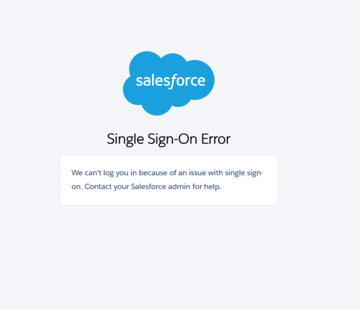
I used to have access to Trellis and/or Marketing Cloud:
If you had access to Trellis or Marketing Cloud in the past, and are now seeing this message, your account has been deactivated.
We automatically deactivate accounts that have been inactive for 90 days. Users at risk of being deactivated are notified via email before they are deactivated. If you receive this email, you must log in to prevent the deactivation of your account. To prevent being deactivated again, be sure to log in every 90 days.
You can submit a request to reactivate your previous Trellis access instead of submitting a new request. View the FAQ below titled "How do I reactive my previous Trellis or Marketing Cloud access?" for the detailed steps to take.
I have never had access to Trellis and/or Marketing Cloud:
If you have never had access to Trellis or Marketing Cloud before, then you (or your supervisor) must submit an AccessFlow Request to gain access.
If you haven't submitted an AccessFlow Request yet, then go to the next FAQ below for directions on how to submit one (How do I submit an AccessFlow Request?).
If you have already submitted an AccessFlow Request, then you can check the status of your request following the steps in the FAQ below (What is the status of my AccessFlow Request?).
To submit an AccessFlow Request, follow the steps below.
- Go to https://uarizona.service-now.com/accessflow and log in with your NetID.
- Click "New Access Request". In the "Add Access for (Select Users)" field, enter the NetID of the person you are requesting access for. NetID is the best search field option here.
- Select your Access Provisioning Liaison (APL) Approver. The APL Approver is a designated approver for your department. If you are unsure who to select, you should reach out to them to confirm. The Trellis team does not have the ability to update or change your APL approvers.
- Under Category, select Trellis.
- For What Access Required, Permission, and Request Items List, this is dependent on the access you need in Trellis. You will be asked to provide a Business Justification for your access request.
- All Trellis access requires the completion of:
Please note that there may be additional trainings based on access requested or special requirements for your specific unit. When a request is submitted, you will receive email confirmation that the request has been submitted. You will also be notified of any trainings that are required for the access you requested.
If you have already submitted an AccessFlow Request, you can check the status of your request by going to: https://uarizona.service-now.com/accessflow?id=accessflow_your_request
Click to view Open Requests at the top. All Trellis requests start with the description "Trellis Access Request for NAME". Open Requests with a status of Awaiting Approval/Training have not been fulfilled by the Trellis team. The Trellis team will not see your request until all training is complete and the APL Approver and Data Steward have approved the request. Click your request to see what stage it is in and if you are missing any required trainings. Requests will automatically cancel after 90 days.
All Trellis access requires the completion of:
- FERPA Training | Office of the Registrar
- Information Security Awareness Certification (Yearly Certification)
- Trellis Terms of Service Training
If you do not see your request, go to the Closed Requests to see why your request was closed. Requests with a status of Cancelled were closed due to the 90 day maximum. You will need to resubmit your request if it was cancelled.
If you had access to Trellis or Marketing Cloud before and were deactivated due to not logging in, you can submit a request to reactivate your previous access. Note that users requesting reactivation who were not previously given access to Trellis or have moved departments must submit a new AccessFlow Request and will be rejected.
To submit a Request to Reactivate Trellis Access:
- Go to the AccessFlow > Browse Catalog page here: https://uarizona.service-now.com/accessflow?id=accessflow_other_req
- Click View for the "Reactivate Trellis Access" option.
- Enter the name of the person that needs their account reactivated (this will default to whoever is logged in).
- Check the box for "I am requesting to reactivate my previous Trellis access". Please read the acknowledgements before submission.
- Click Request on the right side.
TRAINING & SUPPORT
Go to our Current User Support Page to find helpful resources, workshops, and online sessions for Trellis users!